How to set click to move controller
Atavism 10.12.0+
With Atavism 10.12.0, we introduced an easy-to-use system with presets. You can modify any controller aspects globally or per instance in the Atavism Manager inside Unity.
In the Manager, you will find Controller Presets and Controller Settings. Settings are the ones that are used, while the Presets are like templates that can be applied to restore your Controller configuration to the premade values.
To change your controller to use click-to-move, you can use our preset, modify the current one, or create a new setting.
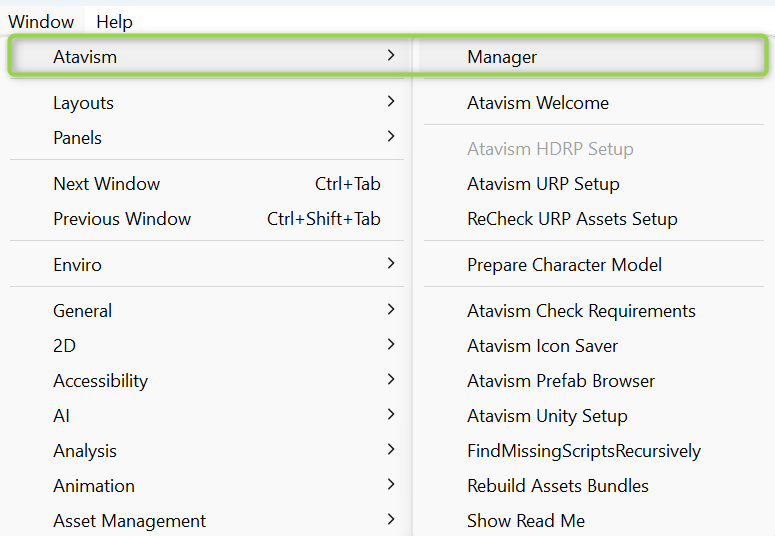
Click on the Window -> Atavism -> Manager
Option 1: Modify the current controller
In the Manager, in the left section, select Controller, find the Click to Move section, and tick the Allow Click Movement checkbox
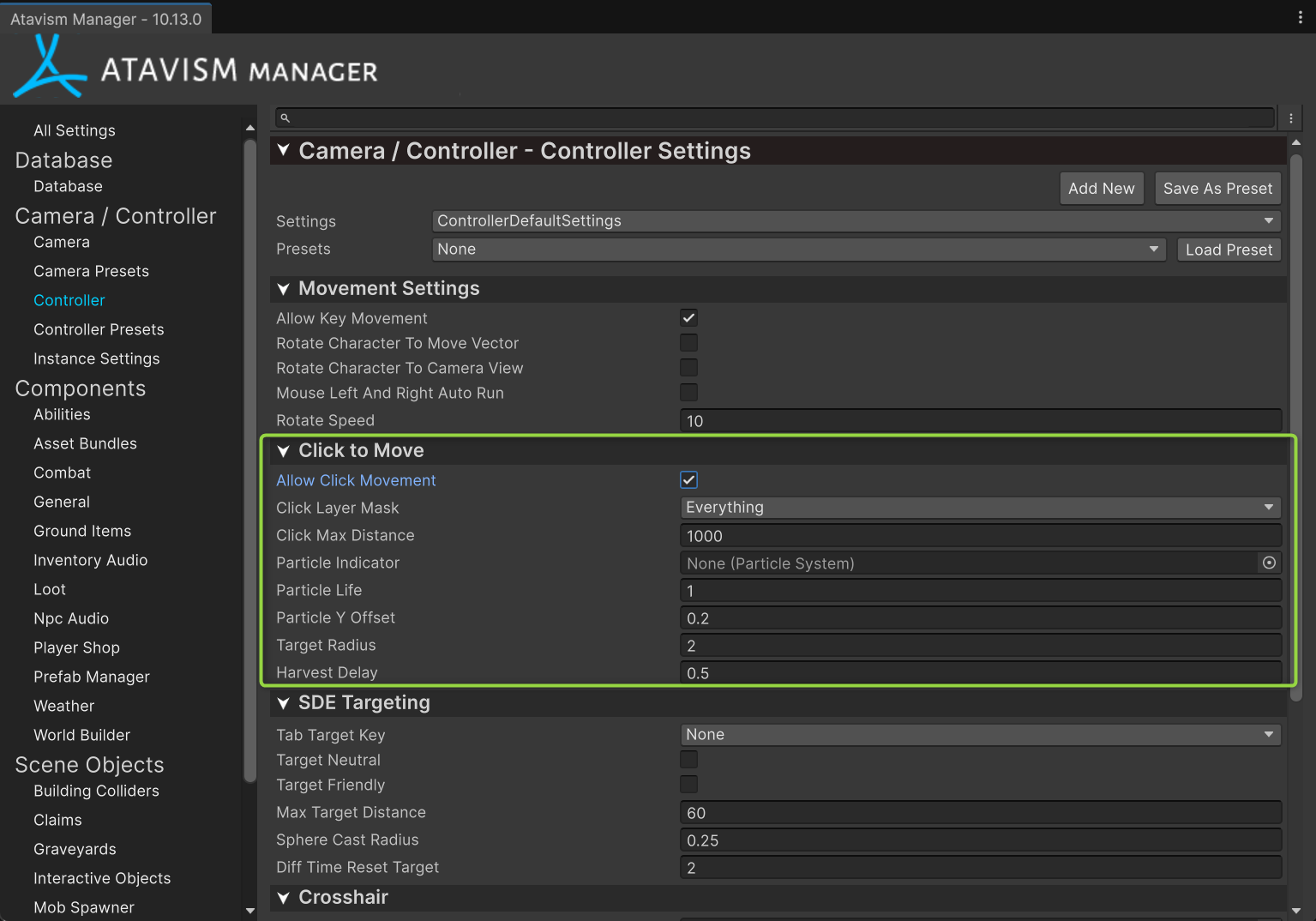
It’s important to ensure that in the Click Layer Mask, you select specific ground layers that should be clicked to move your character, as everything can use particles or other transparent objects in your scene. For a test, you can keep it as Everything.
Distance defines how far you can click from the camera to the destination point (raycast).
Particle indicator can take a particle system object and, with other Particle settings, define where you clicked when using it, and animate the click.
Option 2: Switch to a different preset
You can also simply switch the preset, and in order to do this, in the same Controller section in the Manager, select Click to Move preset from the drop-down menu in the Presets list.
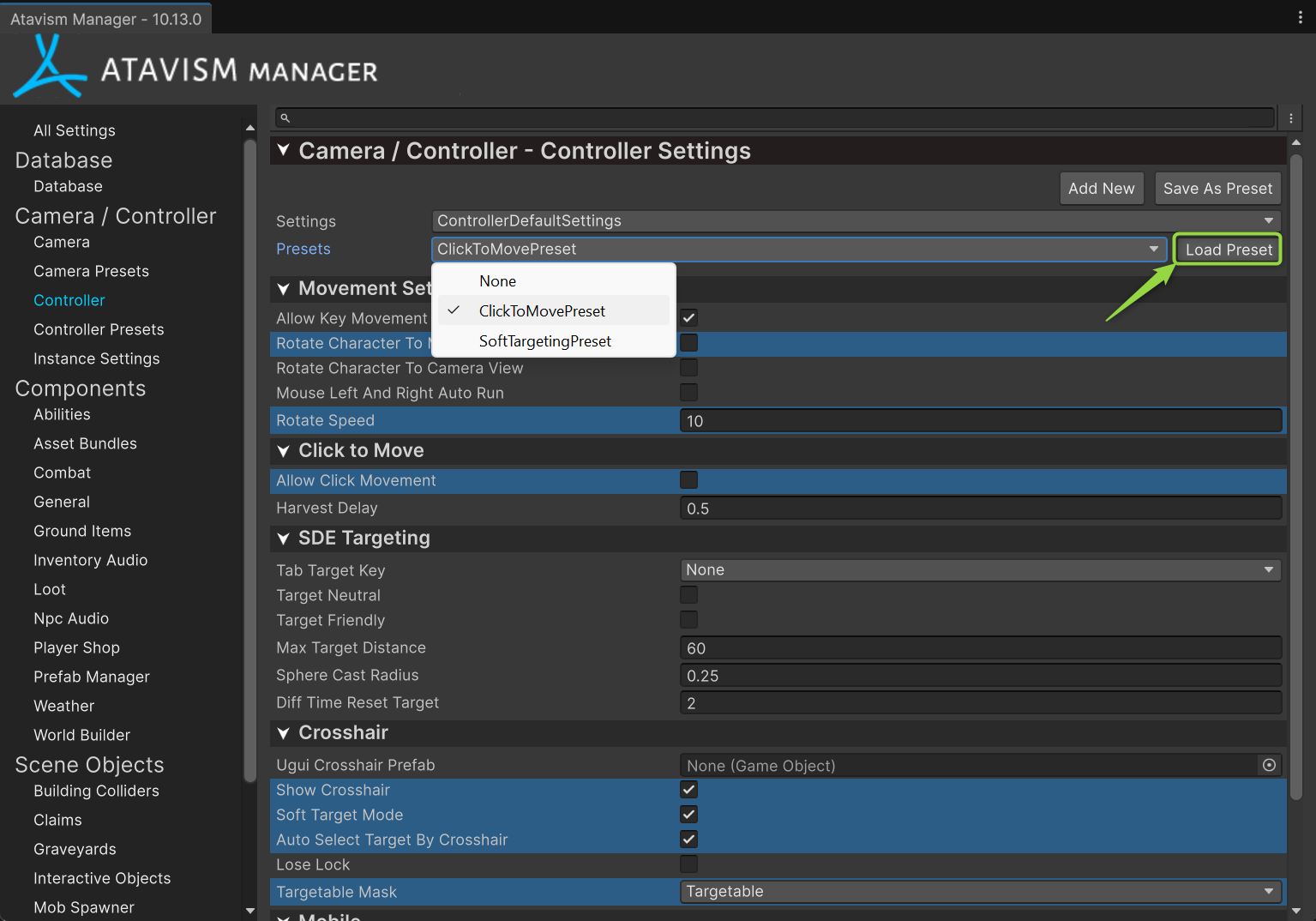
The manager will show you all the settings that will be modified if you apply this Preset, and you are doing this by clicking the Load Preset button on the right of the list.
Atavism 10.11.1-
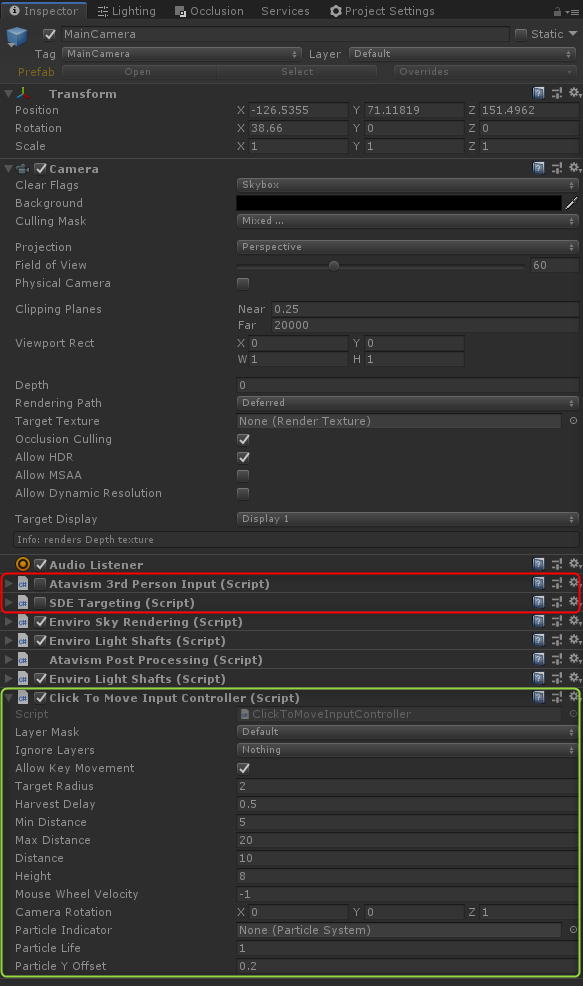
Atavism, except for the typical 3rd person input controller, comes with a click-to-move controller. To set it up, you need to open your world scene (by default, the MainWorld scene) and select MainCamera.
Then add click to move the input controller, disable Atavism 3rd Person Input and SDE Targeting components, and set Layer Mask to at least Default, like in the screenshot below.